CompPorter
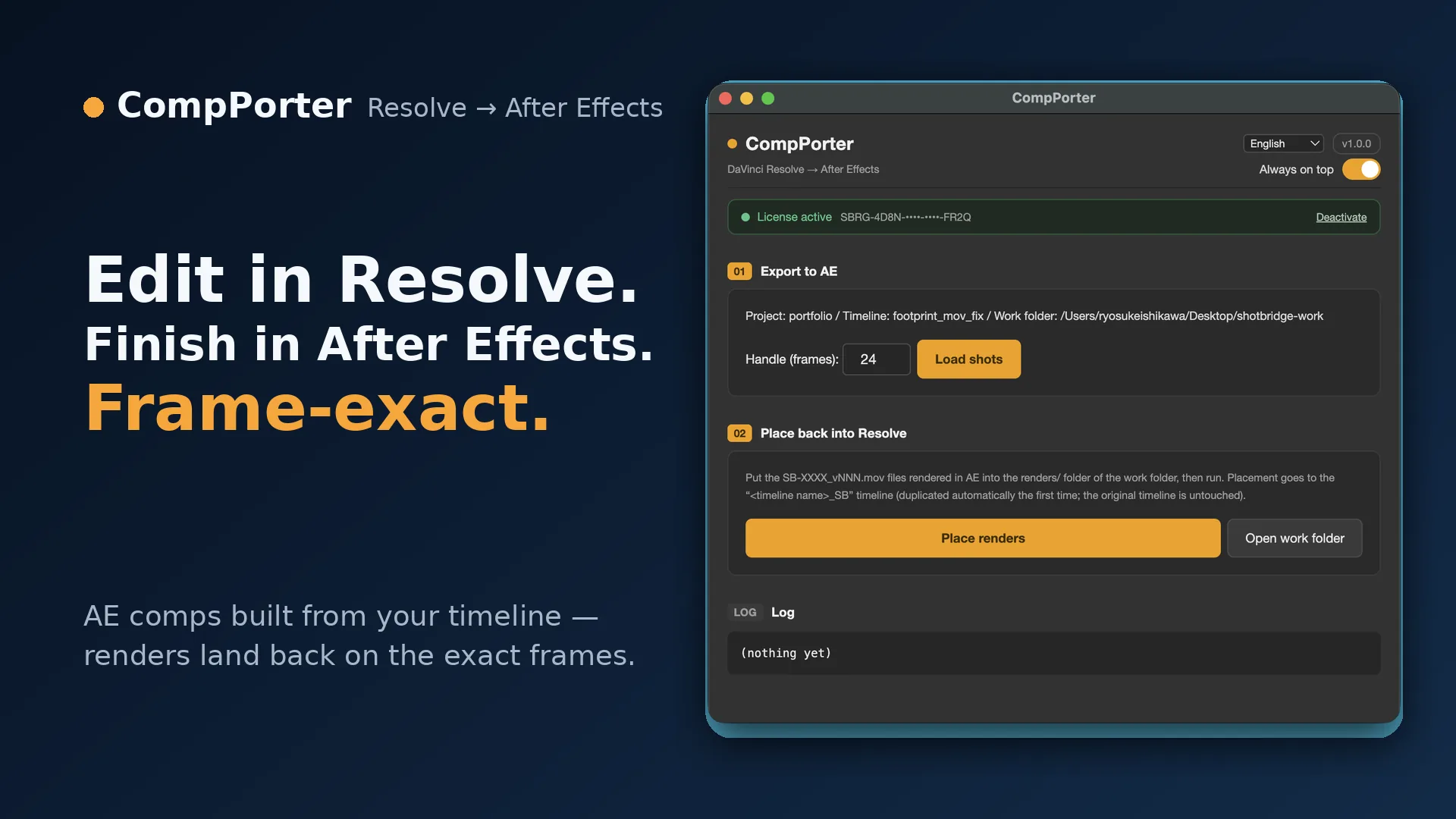
(English / Japanese)Edit in DaVinci Resolve, finish in After Effects. It builds AE compositions from your timeline and places the renders back onto the exact original frames.
v1.0.0 / DaVinci Resolve Studio + After Effects / macOS
Your download link and license key arrive in your order confirmation email. One license covers up to 2 computers.
Overview
No video is moved. Graphics only, onto the correct frames. You edit in DaVinci Resolve and lay motion graphics on top in After Effects. Are you doing that round trip by hand — exporting the video, importing it, lining it up…? And if it's off by a single frame, you start over.
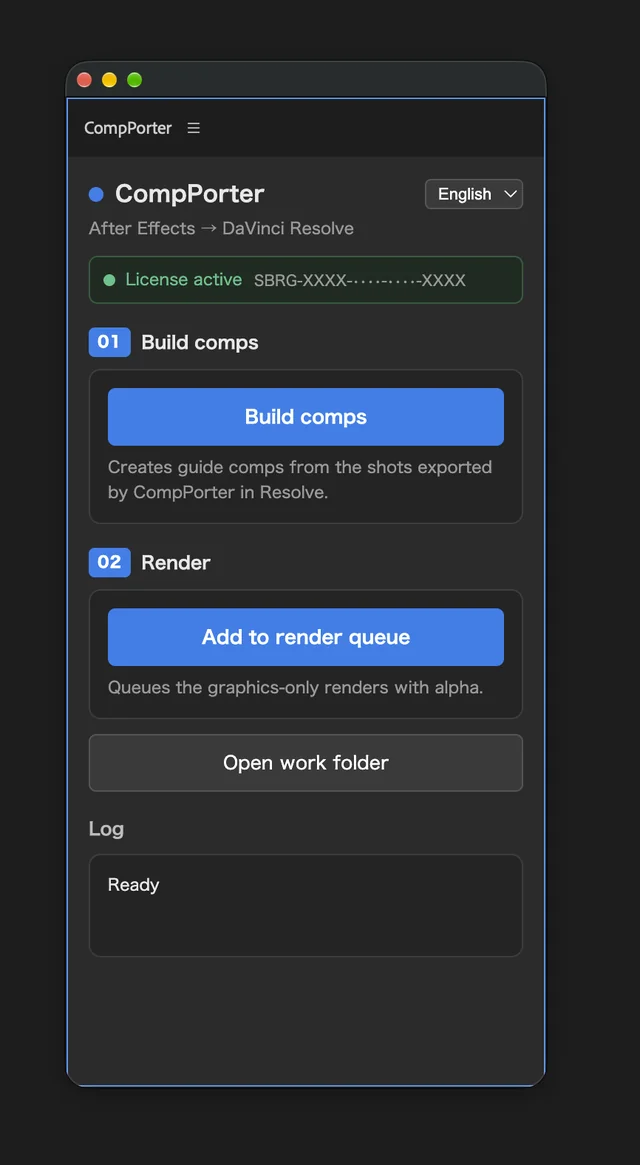
CompPorter is a bridge tool that passes only "transparent graphics overlays" between Resolve and AE. The video itself never moves, so your original footage and the grade you worked hard on stay untouched. In AE, a comp is prepared automatically with the video placed as a guide layer; render just your graphics with transparency and they are placed automatically at the correct position on a duplicated timeline. Every placement is read back and verified.
Who It's For
- You edit in DaVinci Resolve and add titles and motion graphics in After Effects
- You edit with proxies and struggle with quality or positioning when handing off to AE
- You repeat export, import and alignment by hand for every shot
- Every graphics revision (v2, v3…) means placing everything again
- XML round trips shift positions, and checking them eats your time
- You've invested in a large library of After Effects plugins and are hesitating to make the move
Features
No Video Moved — an Overlay-Only Round Trip
Only transparent graphics are passed. No waiting for video exports, no moving huge files. Your grades and effects on the Resolve side are never touched.
"Range Mode": Export a Range as One Comp
The range you mark with In/Out points can be exported as a single composition. Titles that span cuts and graphics that start mid-shot round-trip accurately, margins included.
Choose Reference Media per Shot
The video you use as a guide in AE can be chosen per shot from three options: Proxy (light and fast) / Original (for checking detail) / Timeline render (with Resolve transforms and more baked in).
Comps with Handles, Generated Automatically
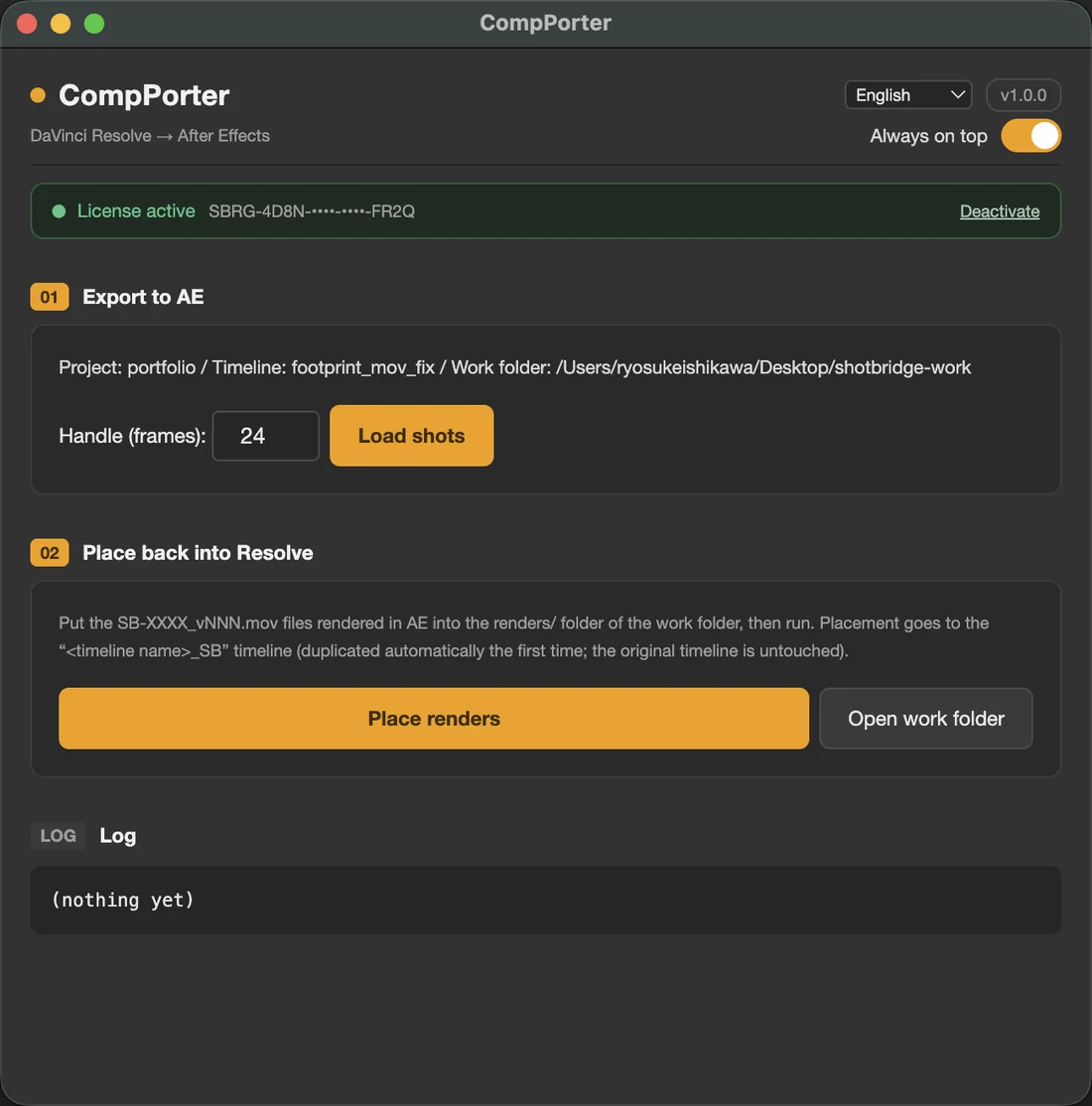
For each shot, a comp is created matching the timeline's resolution and frame rate. Handles are added before and after (default 24 frames, adjustable), so you can animate across shot boundaries. Frame-accurate matching is verified at 23.976 / 29.97 (drop-frame) / 59.94 / 25 and more.
Video Placed as a Guide Layer
Reference video is placed as a guide layer from the start. Guide layers are not rendered, so you can't accidentally export the video along with your graphics by forgetting to hide it.
Transparent Renders Placed Automatically, with Versioning
Exports from AE get version numbers automatically — v001, v002… — and on the Resolve side they are placed at the correct position on a duplicated timeline (original name + _SB). Revisions replace in the same position, so no matter how many fixes you make, you never place things again. Your original timeline is never touched.
Placement Verified with a Full Report
Every placed shot is read back, and a report checks start frames and lengths against the manifest. If even one frame is off, the report says so.
What It Can't Judge, It Doesn't Guess
Elements the tool can't judge accurately, like speed changes (retiming), are never interpreted on their own — they're shown as flags. This design prevents "it drifted without anyone noticing".
Preflight Check Before Export
Before queueing a transparent render, it proves in advance that the output template really produces alpha. This prevents repeat "all-black renders" caused by wrong settings.
Screenshots
Requirements
- Software
- DaVinci Resolve Studio (required) + Adobe After Effects
- OS
- macOS (verified) * A Windows version is in preparation.
- Format
- Resolve Workflow Integration window + After Effects CEP panel
- Languages
- Japanese & English
- License
- One license covers up to 2 computers. Version 1.x updates are free.
* The free version of DaVinci Resolve cannot use scripting, so CompPorter does not work with it. The Studio version is required. First-time setup steps for the AE output template (SB_Alpha_ProRes4444) are documented in the included manual.
FAQ
Does it work with the free version of DaVinci Resolve?
No. CompPorter uses Workflow Integration and scripting features, so DaVinci Resolve Studio (the paid version) is required.
Are video files copied into AE?
The video itself never moves. In the AE comp, the reference video is placed as a guide layer, and only transparent graphics make the round trip.
How do I receive my license key after purchase?
Your order confirmation email contains the download link and your license key. Enter the key in the panel to activate — this first activation is the only step that needs an internet connection. Download links can be reissued free of charge within 30 days of purchase.
How many computers can I use it on?
One license can be activated on up to 2 computers. Activation is done online the first time only. After activation, you can keep using it offline, with no expiry. When you replace a computer, deactivate it from the old computer's panel to free up the slot.
Can I return or cancel my purchase?
You can cancel as long as the download has not started and your license key has not been issued. For details, see the Act on Specified Commercial Transactions (Japanese). (The Japanese version is the authoritative text.)
One-time purchase. Your download link and license key arrive in your order confirmation email.